
User Tools
Sidebar
niota-docs:grid_edit
Table of Contents
Grid edit - user interface
When successfully logged in you are usually linked to the grid editing dialog. How this dialog appears to you depends on how your local niota admin has configured the system. Your local niota admin can configure e.g.
the look and feel
- theme - (color, background image, font)
- language - Englisch/German
- branding - logo, claim
tables and menue items you have access to
functions and features you may use
However your admin configures the system there will be generic features which are explained below.
Page layout
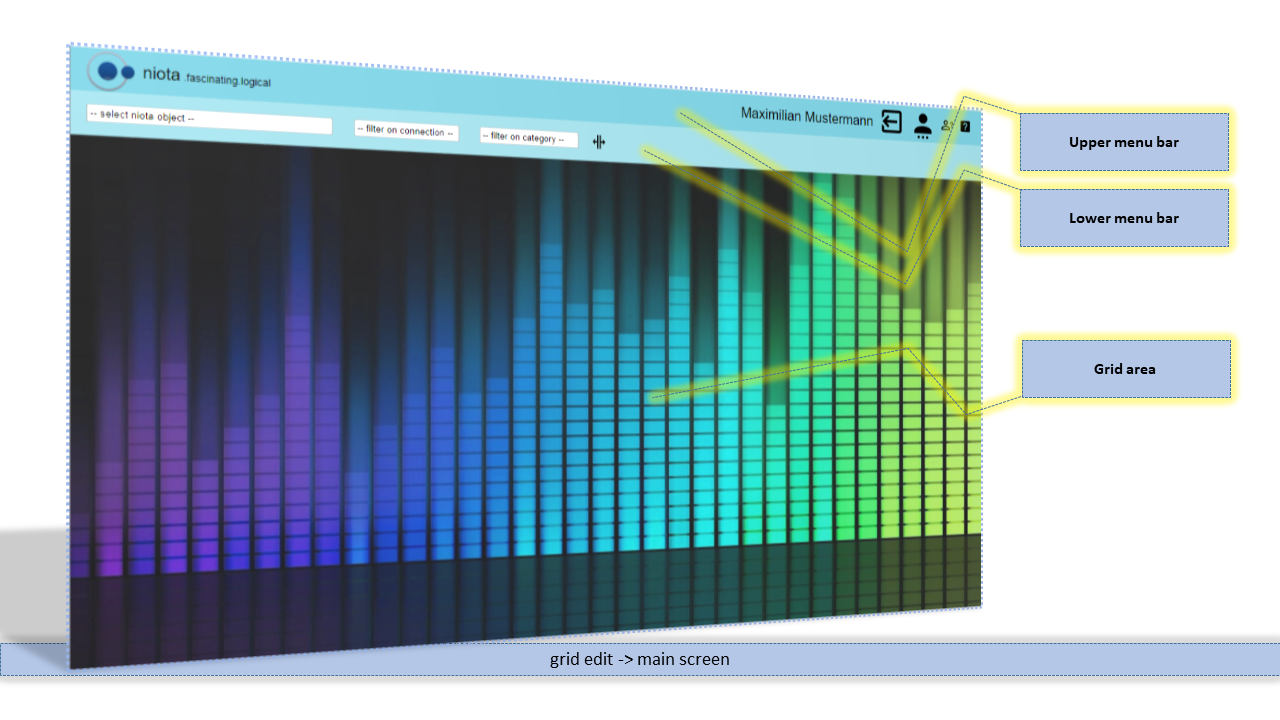
The page can be divided into three sections. From top to bottom:
- Upper menu bar
- Lower menu bar
- Grid area
Upper menu bar
Depending on local configurations and your access rights you find this in the upper menu bar
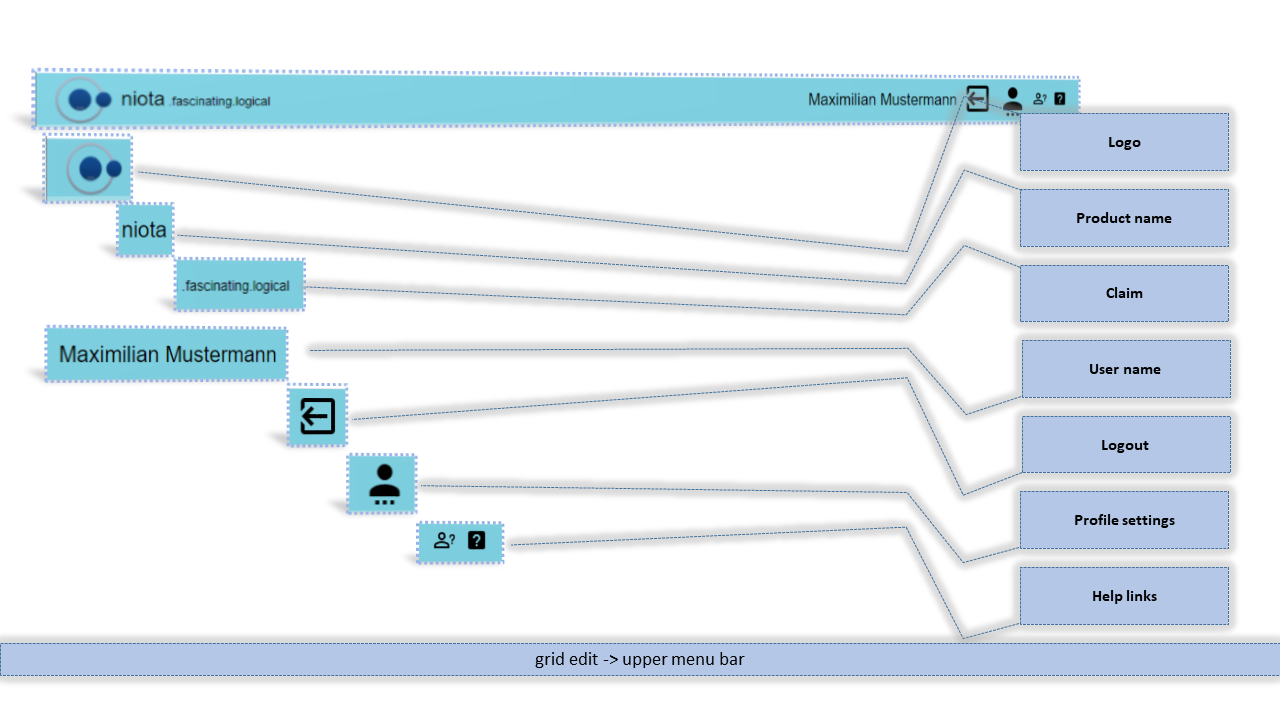
Upper menu bar clickable icons


Lower menu bar
Depending on local configurations and your access rights you find this in the lower menu bar
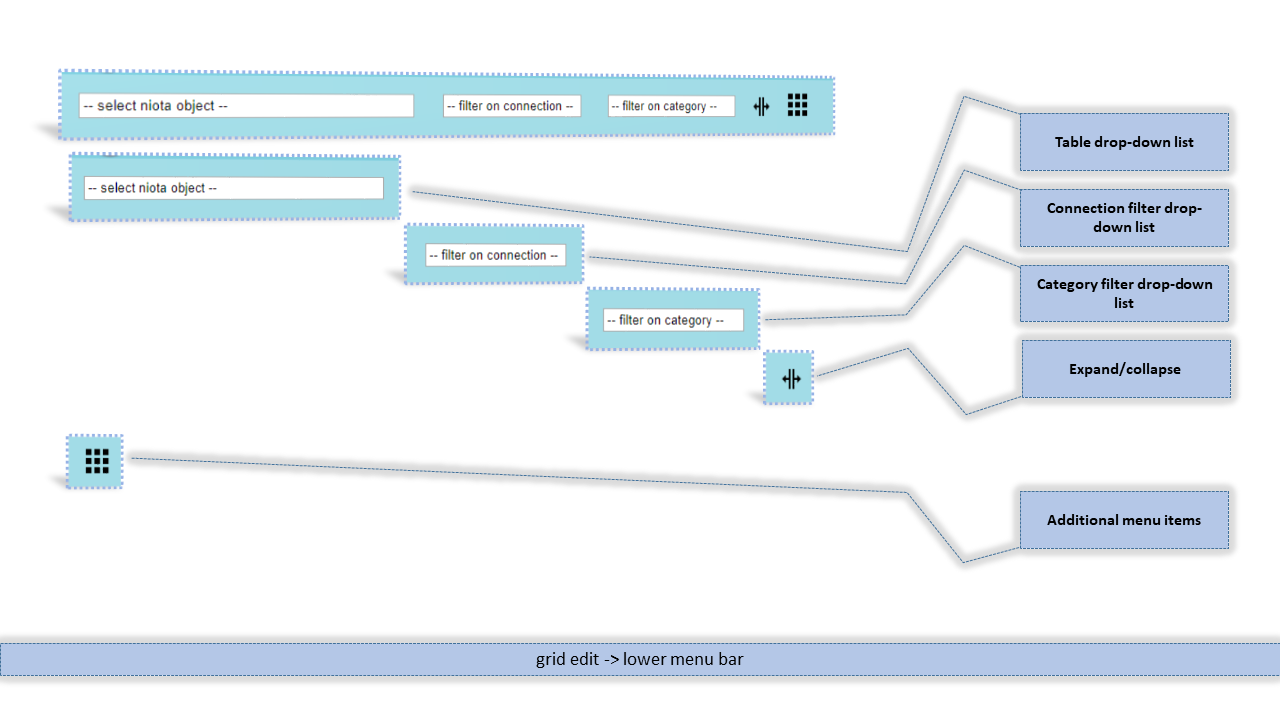
Lower menu bar clickable icons
- catalog object (grid) selector
- connection filter - only the catalog instances of the selected connection will be displayed in the grid selector
- category filter - only the catalog instances of the selected category will be displayed in the grid selector (to create categories check the related admin feature: #LINK)


Grid area
Depending on local configurations and your access rights you find this in the grid area
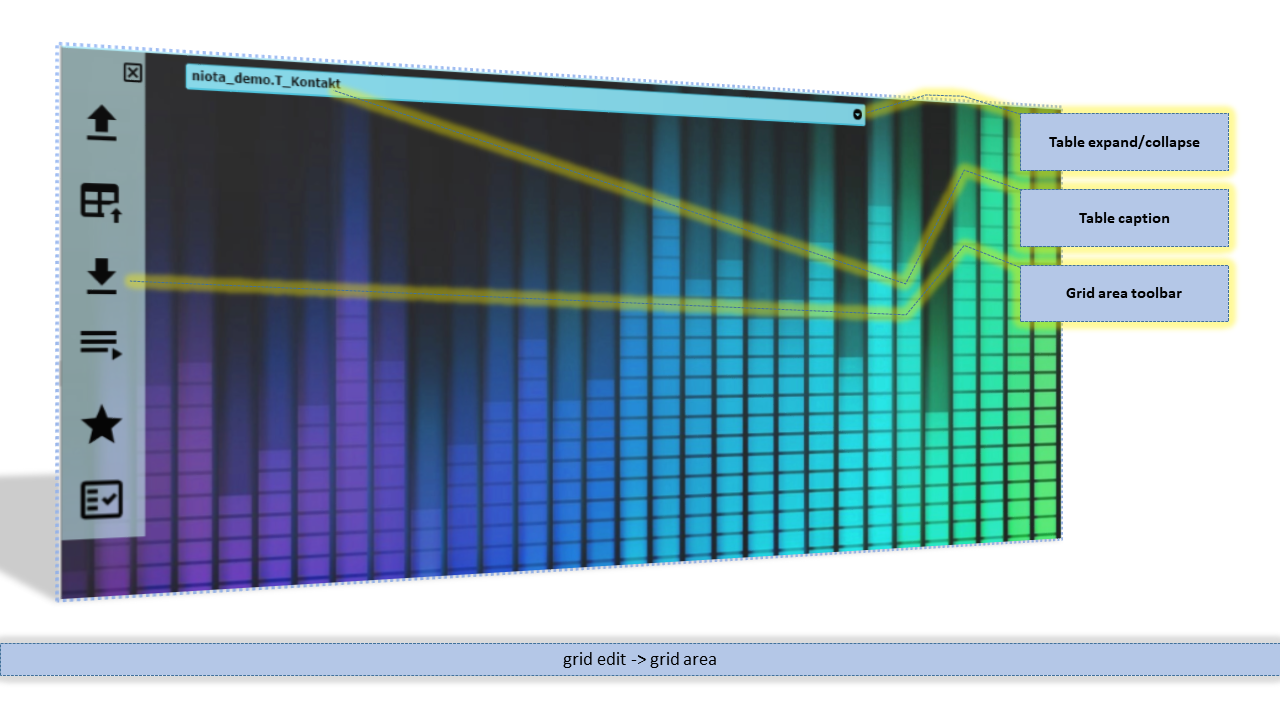
Grid area toolbar
Depending on your access authorities and the configuration of the table you may find this clickable icons in the grid area toolbar.


Grid edit features
You can find edit features at the bottom of the grid. With additional configuration it can be displayed at the top of the grid too (as you can see on the picture upwards).
 add row: inserts a new row into the grid (and the database table)
 edit row: edit the current row
 view row: opens the content of the row in a popup
 delete row: deletes the selected row(s)
 reload grid: reloads the grid content
 search: opens the search input on the top of the columns


For special cases of “null” and empty string editing click here: Grid editing special cases
niota-docs/grid_edit.txt · Last modified: 2025/07/17 14:11 (external edit)